The call room
Video, map and chat, arranged and shared easily.
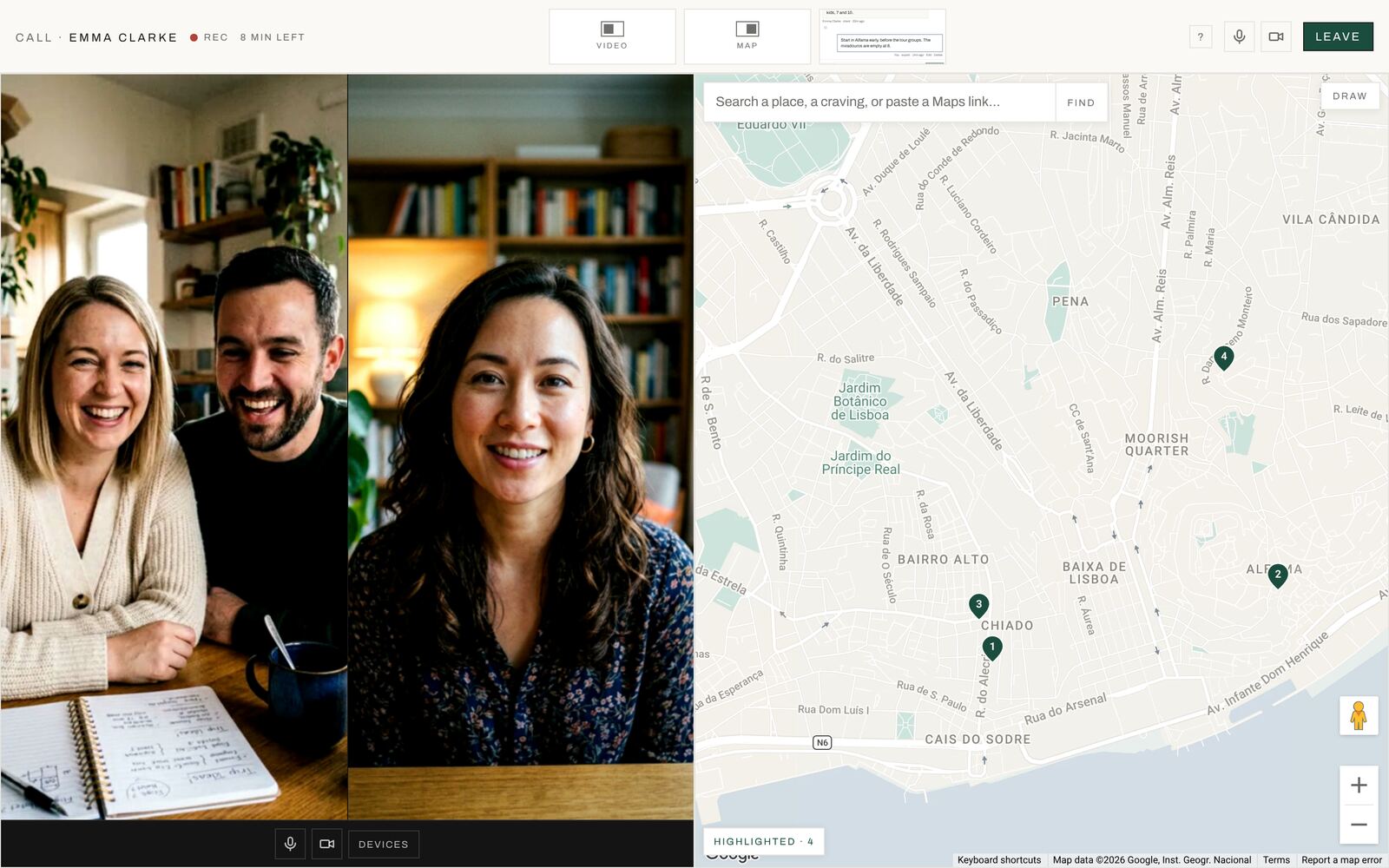
We’ve built the call room to make it easy to capture, share and keep every place mentioned, so you can focus on the conversation. The room has three parts: the video, the shared map and the chat. Two sit side by side, a left pane and a right pane, and the third waits as a card in the top bar, so nothing is ever closed. Drag the line between the panes to give one more room. A card glows green when something new happens out of sight.
Try it
1. Left, right or full screen
Hover a card in the top bar of your screen, or tap it, and choose Left, Full or Right. Only your screen changes: everyone arranges their own, so Emma’s stays exactly as she left it. Choose Full again to go back to your split.
2. Show them
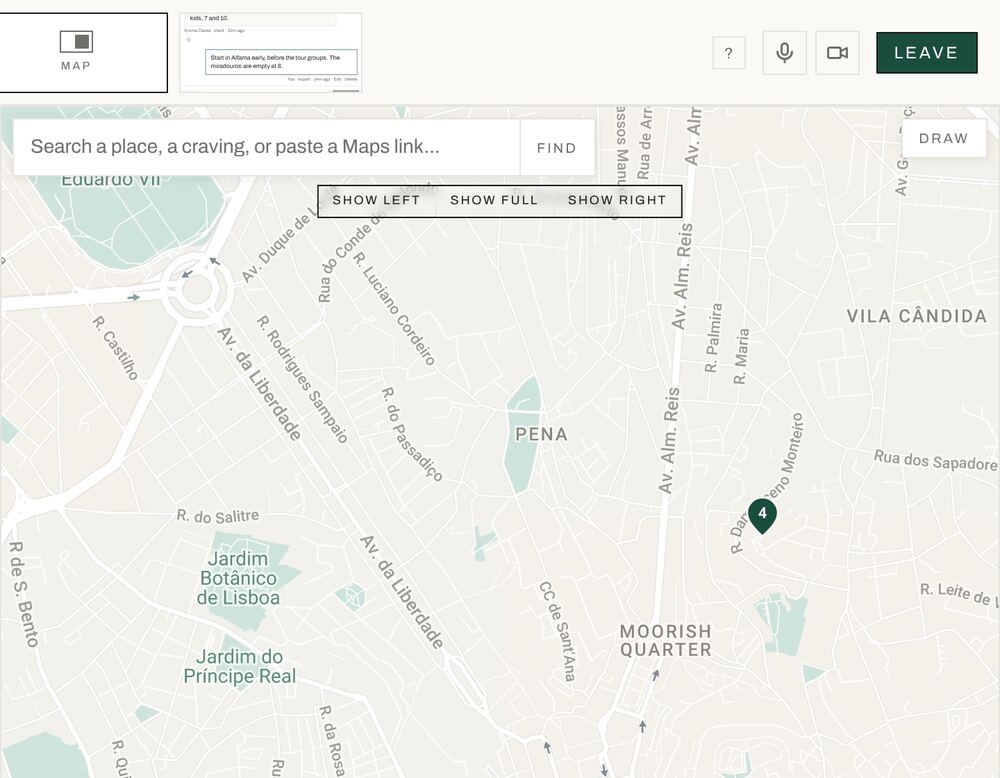
Because screens are arranged separately, you can’t always tell what the traveler is looking at. Show left, Show full or Show right puts that part of the room in that spot on her screen, with a note saying you brought it up. Use it like a guiding hand: “let me show you the map”. In a call it appears when you hover a pane, and only you have it.
3. Share your screen
Share, under your video, puts your screen in the video pane on both sides. Stop sharing and your faces come back. Either of you can share: try it from Emma’s screen too.

Emma
Highlighted · 1
Miradouro de Santa Luzia
You
You
Highlighted · 1
Miradouro de Santa Luzia
Sofia
In the room
The map, where the trip takes shape
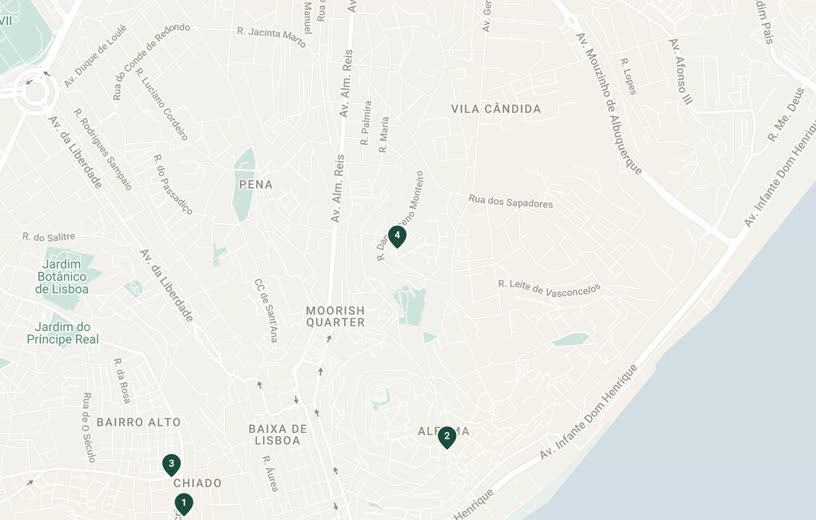
You both see the same map, and when one of you moves it, the other follows. Search a place by name, paste a Google Maps link to a place, or search a craving (“natural wine”, “ramen”) to scatter results with photos, ratings and price levels.
Open a place and choose Highlight to keep it. Highlighted places become numbered pins and gather in the Highlighted list in the corner, where you can drag them into the order of a day. Draw circles a neighbourhood, Street view walks you both to the door, and Snapshot to chat keeps the view.
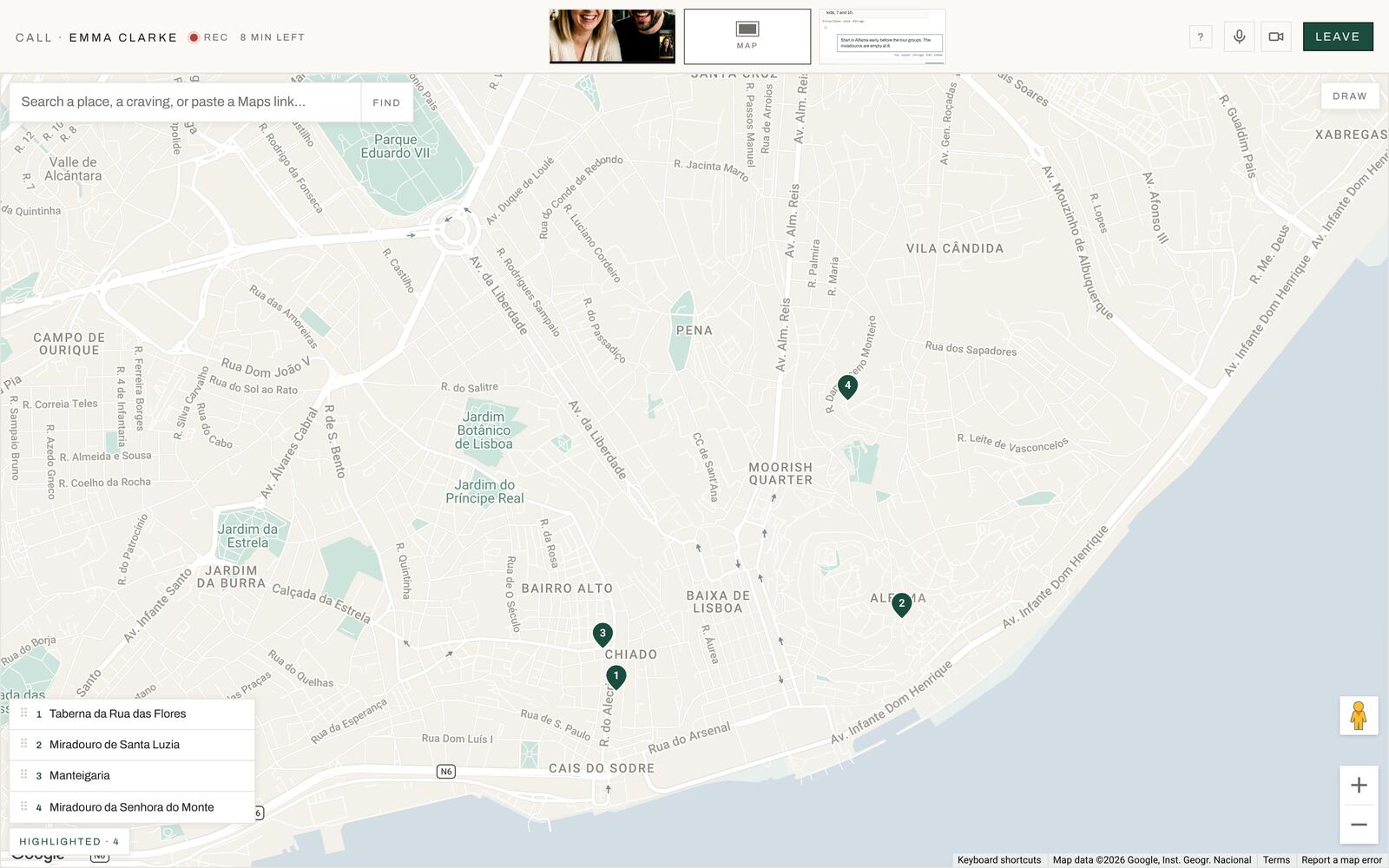
In the room
The chat, and the places you mention
The chat is the same thread as the desk, so everything written before the call is already there. Links, notes, files and places land on the desk as they’re shared. A link can open beside the call in the room’s own browser, and a place opens on the map.
Talk naturally. When a place name comes up, a quiet Heard a place? card offers to show it on the map, and anything you mention that never made it to the map is listed on the desk afterwards, one click from being added.
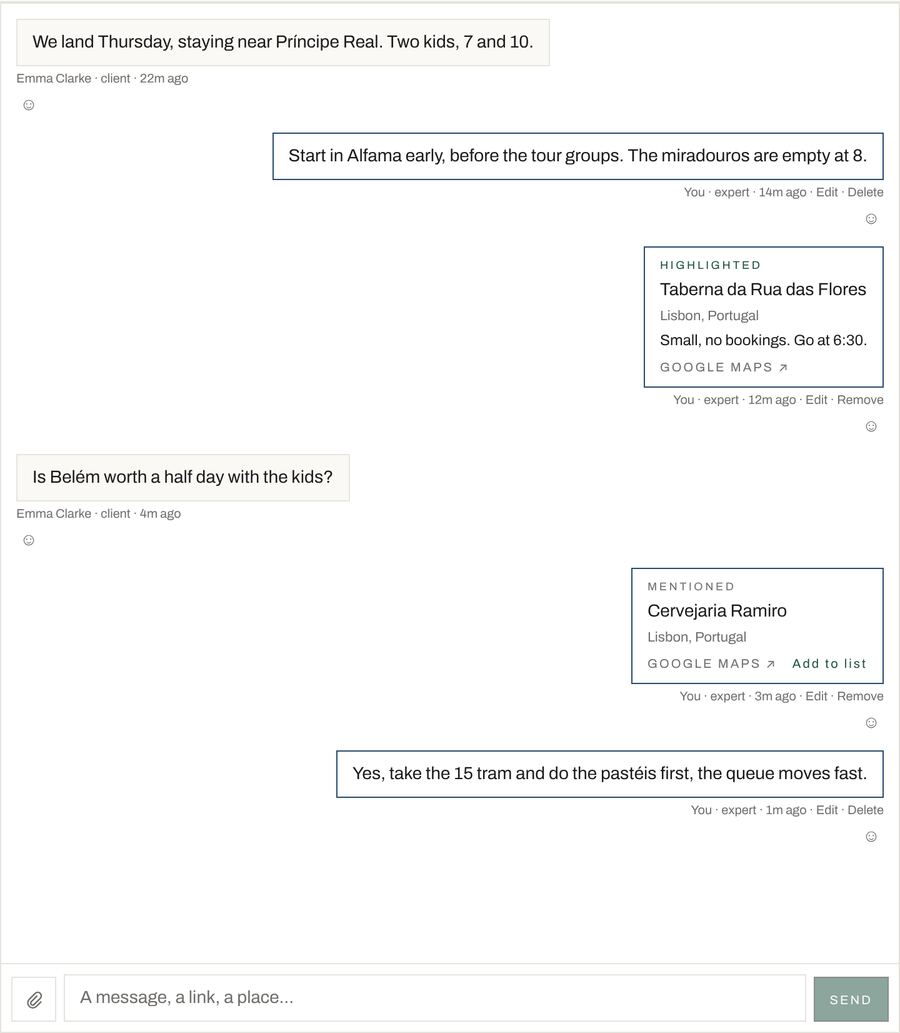
In the room
Sharing your screen
Share, under the video, shows the traveler a whole screen, one window or a single browser tab: a restaurant’s menu, a booking page, your own photos from last spring. It takes over the video pane on both screens, and the faces come back the moment you stop. Sharing one tab rather than the whole screen keeps your notifications to yourself.
Either of you can share, from a computer. Phones can watch a share, but no phone browser can send one. Whoever is watching can switch between Fit, to see all of it, and Fill, to use the whole pane.
In the room
The top bar
Left to right: the traveler’s name, the red Rec dot (the call is recording), the time left, the cards, then ? to replay the tour, your microphone and camera, and Leave.
Under the video, Devices switches camera or microphone mid-call, and Backdrop softens what’s behind you with a blur or a Key backdrop.

In the room
On a phone
On a phone one part fills the screen and the call floats in a corner; drag it anywhere, tap it to bring the faces back. Video, map, chat, your mic and camera and Leave sit in the dock along the bottom, and Show them is at the top.
Started on your laptop and need to walk? Open the call on your phone and join: the call moves across and the laptop steps out quietly, with a way to bring it back.
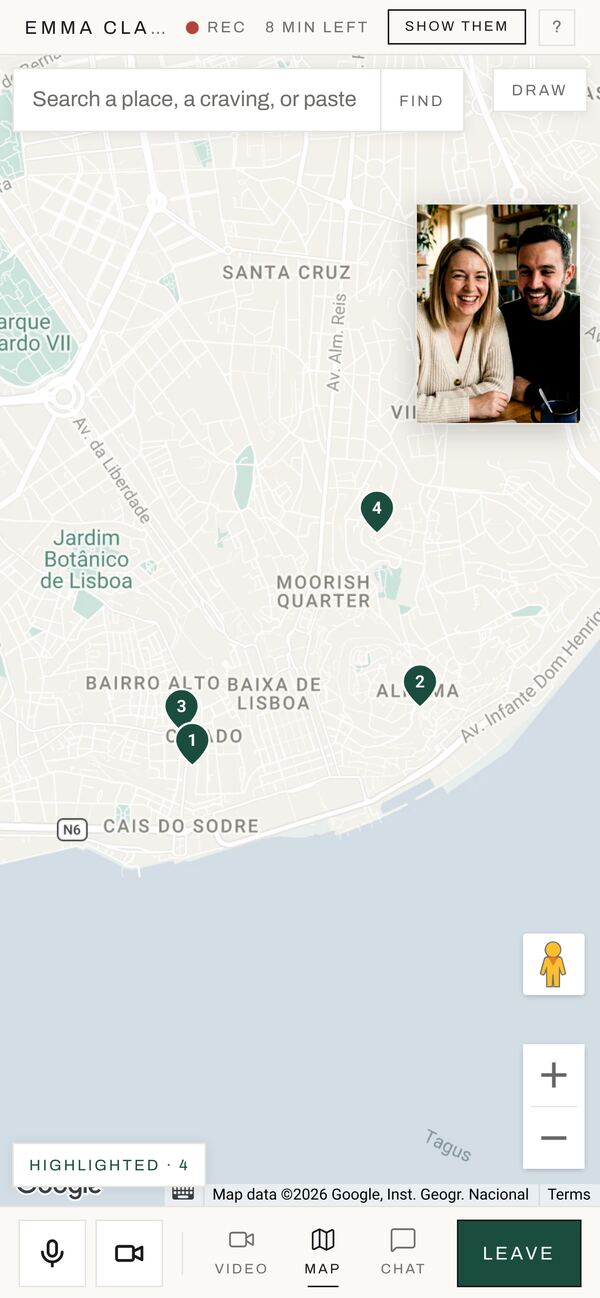
In the room
Stepping out, and back in
Dropped connection, or left a moment too soon? Rejoin from the dashboard or the desk. The room stays open while either of you is in it, and for fifteen minutes after the last person leaves, even if you’ve run past the booked time (up to two hours past it).
Next in the guide: after the call, the desk.